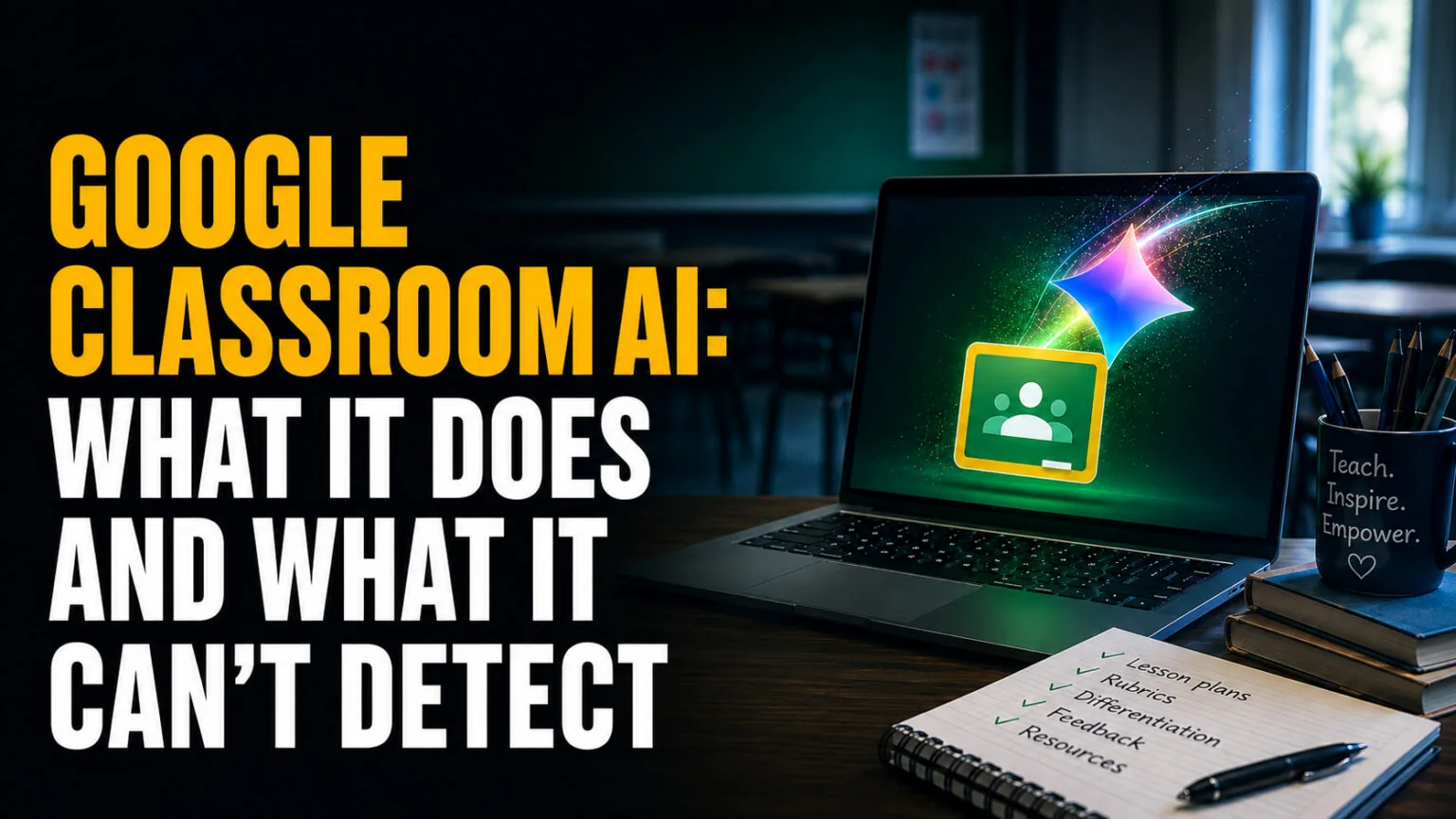
The short answer most people arrive looking for is this. Google Classroom AI cannot tell you whether a student used ChatGPT. Classroom has no built-in AI detector, and the originality reports it does ship are a plagiarism tool that matches text against the web. Google’s own Classroom Help documentation for the feature never mentions AI detection once.
What Google Classroom AI does instead is generate. Gemini in Classroom has been free on every Google Workspace for Education edition since 30 June 2025, covering more than 30 educator tasks from lesson plans to rubrics. Since 10 August 2026 it has been open to students of all ages, not just the over-18s. Below is what it actually does, which editions get what, what it costs, and what teachers use instead when they need to check a submission.
The Key Takeaways
- Google Classroom has no AI detector. Originality reports check the web for plagiarism, which is a different job entirely.
- Gemini in Classroom is free on all Education editions, Fundamentals, Standard and Plus, and has been since 30 June 2025.
- Students of all ages have had web access since 10 August 2026, with mobile following on 17 August 2026, up from an 18-and-over limit.
- One feature is gated. AI-suggested feedback on written assignments needs Education Plus or the Teaching and Learning add-on.
- Only an administrator can switch it off. It is on by default and individual teachers have no toggle.
What Google Classroom AI Actually Is
Google ships two different things with confusingly similar names, and almost every article on this subject treats them as one product. They have different features, different age limits and different availability. Getting them mixed up is how you end up promising a 15-year-old something they cannot access.
Gemini in Classroom, the tab inside Classroom
This is the one most people mean. It is a Gemini panel that lives inside Google Classroom itself, tuned with LearnLM, Google’s family of education models. Teachers use it to generate material against real class context, and students get a separate tab with study tools.
It is available on Education Fundamentals, Standard and Plus. This is the product that opened to students of all ages on 10 August 2026, per the Google Workspace Updates blog.
The Google Classroom app in Gemini, the other one
This runs the other way around. You open the Gemini app, connect Classroom as a source, and Gemini pulls your class context into a normal chat. It finished rolling out on 18 June 2026.
The limits are tighter and this is where the confusion does damage. It is English only and restricted to users 18 and over, so the all-ages headline does not apply to it. It also cannot enter grades, give private feedback, create rubrics, or delete, archive or post assignments, though it can post a draft.
What Google Classroom AI Does for Teachers
Google counts more than 30 educator tasks. The list length is not the interesting part. What matters is that it works against your actual class materials rather than a blank prompt box, and that is the whole reason to use it over a general chatbot.
Planning. Gemini drafts lesson plan outlines, rubrics, vocabulary lists and choice boards. It will also convert a rubric you already have sitting in Google Drive rather than making you start over.
Assessment. Quizzes export straight into Google Forms, which is the step that actually saves time. Reading comprehension questions are generated against the specific text you uploaded, not a generic passage.
Engagement. It generates lesson hooks, project ideas, and prompts built around the misconceptions students commonly hold about a topic. That last one is the most useful and the least used.
Differentiation. Gemini writes informational texts and stories to a target reading level, produces Read Along stories for younger classes, and translates across more than 100 languages. Audio lessons turn class material into a podcast-style narrated lesson, though that one is English only for now.
Feedback. Gemini drafts guidance on written assignments, pitched to the student’s grade level and to a focus area you choose. This is the one gated feature, and it needs Education Plus or the Teaching and Learning add-on.
The mobile apps carry a thinner subset, five features in total. Quizzes, project ideas, hooks, misconception prompts and the Gemini app starter prompts. Google states plainly that anything not on that list is not available in the Classroom mobile app.
If you are weighing this against the dedicated teacher platforms, our guide to the best AI for teachers ranks the alternatives and covers which free programs are still open.
What Students Get, and What Changed on 10 August 2026
Until 10 August 2026 the student side was limited to higher education users aged 18 and over. Since that date Gemini in Classroom has been open on the web to K-12 and higher education students of all ages, with the mobile app following on 17 August 2026. Google runs this as a full rollout with one to three days for the feature to become visible, so if your students cannot see it yet, that is expected.
Students get a dedicated Gemini tab with starter tiles for learning a topic, taking a quiz, practising with flashcards and building study guides. Materials sync to Gemini Notebook, which produces audio overviews, video overviews and interactive diagrams from the same source files.
The starter prompts are the new part that matters. A student picks a specific class and assignment, and Gemini pulls the title, the instructions and the curriculum materials in as context automatically rather than making the student paste them.
Access is not automatic. A student needs the Student role in Classroom, membership of a group or organizational unit where Gemini in Classroom is enabled, and either Gemini or Gemini Notebook switched on for the organization. For study tools outside Classroom, our best AI tools for students covers the wider set.
Is Google Classroom AI Free?
Yes, for the core feature. Gemini in Classroom became free of charge across every Google Workspace for Education edition on 30 June 2025. Institutions that are not on Workspace at all can still sign up for Education Fundamentals and enable only the Gemini app.
| Edition or add-on | Gemini in Classroom | AI-suggested feedback | Cost |
|---|---|---|---|
| Education Fundamentals | Yes | No | No cost |
| Education Standard | Yes | No | Paid edition |
| Education Plus | Yes | Yes | Paid edition |
| Teaching and Learning add-on | Yes | Yes | Paid add-on |
| Google AI Pro for Education | Yes, plus premium models | With Plus or the add-on | $20 per user/month annual, $24 monthly |
Google AI Pro for Education is the paid upgrade, and it replaced the old Gemini Education and Gemini Education Premium add-ons. Read the list price carefully, because most write-ups quote it wrong. The add-on lists at $20 per user/month on a one-year commitment, or $24 billed monthly. The $15 figure you will see quoted everywhere is the post-discount rate, not the list price. It applies only to Education Plus customers buying 50 to 999 licences on a one-year commitment, who get 25% off, per the Google for Education pricing page.
One correction worth making. Several sites state that Gemini for Education carries a 50-seat minimum. It does not. Nothing in Google’s admin documentation sets a minimum order quantity for the AI Pro for Education add-on, and Gemini in Classroom itself is free on every Education edition, so no seat count gates it. The number 50 is doing two other jobs. It is the bottom of the 25% discount band, and it is separately the minimum order quantity for Education Standard and Plus licences at institutions with fewer than 50 enrolled students and active staff. Neither one is a floor on the AI add-on. If you are comparing this against consumer plans, our full Gemini pricing breakdown sets out the standard tiers, and students should check the free Google AI Pro for students offer separately.
Does Google Classroom AI Detect AI?
No. Google Classroom has no built-in AI detector and no AI-writing score. Nothing in Google’s Gemini in Classroom documentation refers to identifying AI-generated student work, and no Classroom setting turns such a check on.
What originality reports actually check
Originality reports are the feature people mistake for AI detection. They compare a student’s Google Docs, Google Slides or Microsoft Word file against webpages and books on the internet, then link the matched sources and flag uncited text.
If your administrator enables school matches, reports also compare against previous submissions from your own school or district. That catches a student reusing last year’s essay. It does not catch text a model wrote this morning, because that text matches nothing anywhere.
Two further limits matter. Reports do not check citation formatting or verify that a source is real, so the teacher still makes the judgement call, and Google Scholar is excluded from the search.
What teachers use instead
Every tool that does score AI writing in Classroom is a third-party product bolted on top. We rank none of them here and we sell none of them.
| Tool | Built into Classroom? | What it checks | Worth knowing |
|---|---|---|---|
| Originality reports | Yes | Web and book matches, plus school matches if enabled | Plagiarism, not AI authorship |
| Google Docs version history | Yes | How a document was written over time | The strongest signal you already own |
| Turnitin | No, institutional | Plagiarism plus an AI writing score | The default in most institutional workflows |
| GPTZero | No, integrates | Sentence-level AI probability | Covered in our GPTZero review |
| Winston AI | No, integrates | AI detection plus plagiarism | Accuracy figures are vendor-reported |
| Pangram | No, integrates | Sentence-level AI scanning | Accuracy figures are vendor-reported |
Version history deserves more attention than it gets. A document that grew over three sittings with edits, deletions and rewrites looks nothing like one that appeared in a single paste, and that evidence is already sitting in every Google Doc your students submit.
Why a detector score is not proof
Stanford researchers tested seven widely used detectors against 91 TOEFL essays written by real human students who were non-native English speakers. All seven unanimously misclassified 18 of the 91 essays as AI-generated.
Across the whole set the average false positive rate was 61.22%, while the same detectors stayed near-perfect on 88 essays written by US eighth graders in their first language. The bias runs in one direction, against the students least able to argue back. A score is a prompt to open a conversation, never grounds for an accusation on its own. Our guide to whether AI detectors are actually accurate goes through the testing, and the best free AI detector compares the free options on one test set.
How to Turn Off Google Classroom AI
Here is the part teacher-facing articles tend to skip. You almost certainly cannot do this yourself. Gemini in Classroom is controlled in the Google Admin console, and there is no per-teacher or per-class opt-out.
It is also on by default for users of all ages. The one exception is that if your administrator previously switched it off for under-18s, it stays off until they change it back.
- In the Google Admin console, open Generative AI, then Gemini for Workspace.
- Select the root of your domain, or the specific organizational unit you want to change.
- Choose Feature access in Classroom and set it to Off.
- To keep it for staff, turn it off at the root and then switch it back on for the teacher organizational unit only.
The under-18 approach Google itself recommends is to move those users into their own organizational unit and turn the feature off for that unit alone. If you are a teacher who wants it gone, the request goes to whoever administers your domain.
Where to Start With Google Classroom AI
If your school already runs Google Workspace, this is the lowest-friction AI available to you, and the core of it costs nothing. Start with quiz generation and differentiated reading passages, because those are the tasks where the output is quick to check and the time saved is real.
Do not treat it as an integrity tool, because it is not one and was never built to be. If detection is the actual problem you are trying to solve, the honest answer is that no detector is reliable enough to accuse a student. The version history already sitting in your students’ documents will tell you more than a percentage score ever will.
FAQ
Does Google Classroom detect AI?
No. Google Classroom has no built-in AI detector. Its originality reports compare student work against webpages, books and, if your administrator enables school matches, previous submissions from your school. That is plagiarism matching, not AI detection, and Google’s own Gemini in Classroom documentation never mentions checking for AI-written work.
Is Gemini in Classroom free for teachers?
Yes. Gemini in Classroom has been free of charge on every Google Workspace for Education edition since 30 June 2025, which covers Education Fundamentals, Standard and Plus. The single exception is AI-suggested feedback on written assignments, which requires Education Plus or the Teaching and Learning add-on.
What can students do with Google Classroom AI?
Students get a Gemini tab that turns their own course materials into flashcards, practice quizzes and study guides, and syncs to Gemini Notebook for audio overviews, video overviews and diagrams. Since 10 August 2026 this has been open on the web to students of all ages rather than only those aged 18 and over, with the mobile app following on 17 August 2026.
What AI detector does Google Classroom use?
None. Any AI scoring you see inside Google Classroom comes from a third-party tool your school has added, most often Turnitin, GPTZero, Winston AI or Pangram. Google supplies originality reports for plagiarism only, and the accuracy figures those detector vendors publish are self-reported.
How do I turn off Gemini in Google Classroom?
Only a Google Workspace administrator can. In the Admin console, open Generative AI, then Gemini for Workspace, select your domain or an organizational unit, and set Feature access in Classroom to Off. It is on by default for users of all ages, and individual teachers have no toggle of their own.