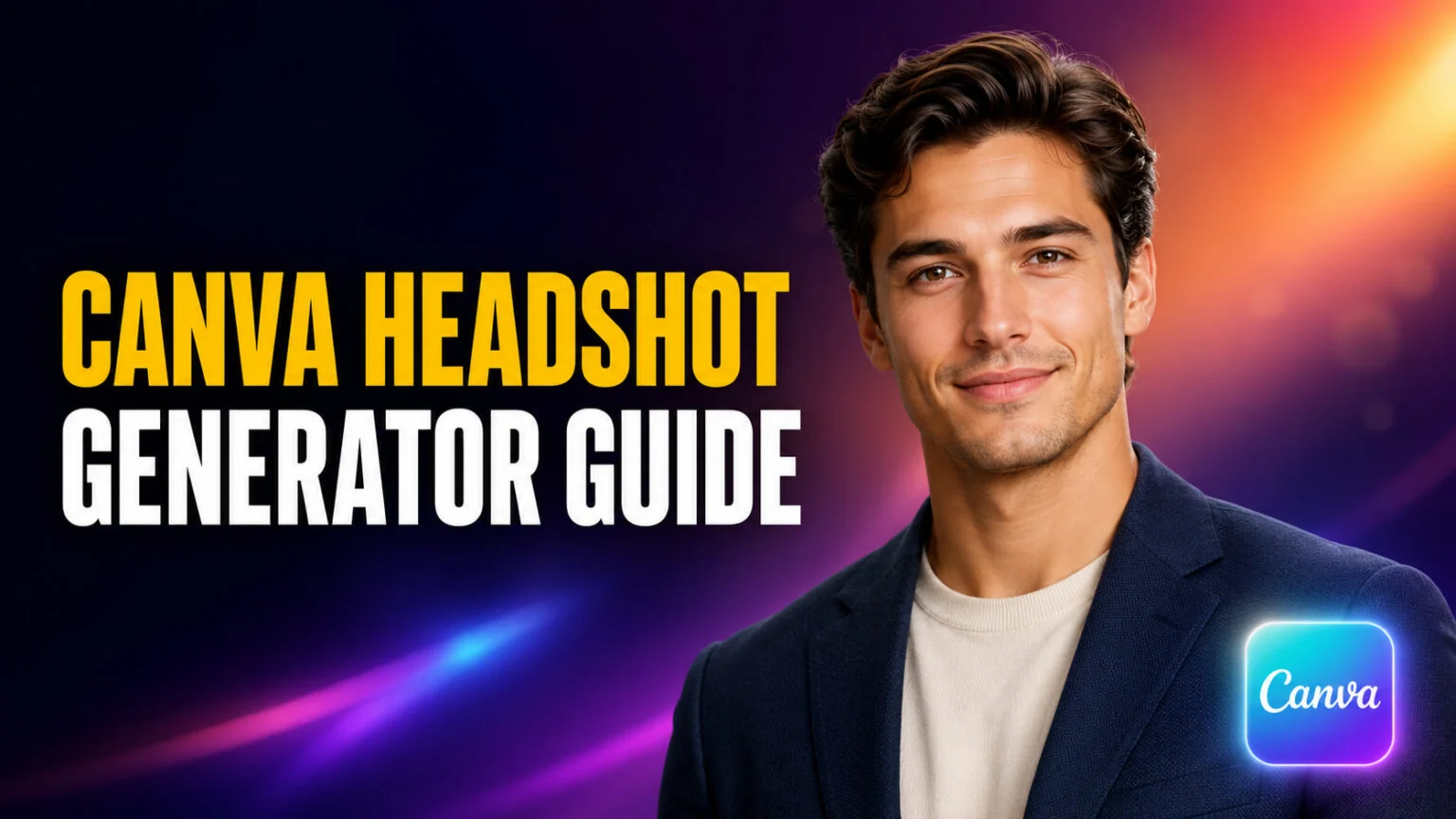
The Canva headshot generator turns a single selfie into a professional-looking headshot in under a minute, and it gives you 2 free credits before asking you to wait 24 hours or upgrade. That speed and price make it one of the easiest AI headshot tools to try, especially if you already design in Canva. The catch is likeness. Because Canva uses style transfer rather than training a model on several photos of your face, the result sometimes looks polished but not quite like you.
This guide shows you exactly how to make an AI headshot in Canva, what the free plan really includes, and how much Canva Pro costs in 2026. You will also get an honest read on the quality, since the tool is good for quick, casual portraits and weak for a high-stakes LinkedIn photo where the face has to match. By the end you will know whether Canva is enough or whether a dedicated tool fits your job better.
The Key Takeaways
- The Canva AI Headshot Generator gives 2 free credits, then a 24-hour wait before you can generate more for free.
- Results appear in under a minute, far faster than dedicated tools that spend 30 minutes to 2 hours training a model.
- Canva Pro costs $18/mo and unlocks up to 200 Premium AI credits a month; Business is $25/user/mo for up to 400.
- Likeness is the weak spot. Canva uses style transfer, not multi-photo identity training, so faces can drift between generations.
- It is best for a fast, casual headshot inside a design; for a precise LinkedIn match, a dedicated AI headshot tool scores higher.
What Is the Canva Headshot Generator?
The Canva headshot generator is an AI tool inside Magic Studio, Canva’s suite of AI features, that transforms an uploaded photo into a cleaned-up professional portrait. You give it one image of your face, pick a few options, and it returns a headshot with tidier lighting, a neutral background, and a more formal look. It sits alongside the rest of what Canva AI can do, so the output drops straight onto a canvas for resizing or branding.
Under the hood, Canva does not train a custom model on your face the way specialist services do. It leans on Magic Media for image generation and Magic Edit for targeted, mask-based changes, applying a professional style to the photo you upload. That design keeps it fast and free to try, but it also explains the likeness limits covered later. Think of it as a smart retouch-and-restyle pass rather than a true digital twin of your face.
The tool is aimed at people who need something usable right now. A student building a portfolio, a freelancer refreshing a profile picture, or a small team that wants consistent headshots without booking a photographer will all find it quick and approachable.
How to Make an AI Headshot in Canva Step by Step
Making an AI headshot in Canva takes about a minute once you know where the tool lives. The flow is the same on desktop and mobile, and you do not need any design skill to get a result. Follow these steps.
- Open Canva and search AI Headshot Generator in the search bar, or find it in the Apps panel under Magic Studio.
- Upload a clear, well-lit photo of your face, looking toward the camera with no heavy shadows.
- Select your gender identity, which Canva offers as female, male, or non-binary.
- Choose a style and background, such as a studio look, an office setting, or a plain neutral backdrop.
- Generate, review the options, then download the headshot or drop it onto a design to edit further.
If the first result looks off, regenerate with a sharper source photo before changing anything else. A front-facing image with even lighting and a visible face gives the AI far more to work with, and it is the single biggest factor in whether the headshot comes out usable.
Is the Canva Headshot Generator Free?
Yes, partly. Canva’s AI Headshot Generator gives you 2 free credits to create headshots. Once you use both, you wait 24 hours before you can generate more for free, or you upgrade for a larger monthly allowance. That is a real free tier, not a trial that locks the download behind a paywall, which is why it is such a low-friction way to test the tool.
The wider AI system works on a monthly Premium AI credit pool that is shared across Canva’s AI tools. On the Free plan you get up to 20 Premium AI credits a month, which stretches across image generation, headshots, and more. Heavy generating is where the free ceiling starts to pinch, and that is the point where most people weigh an upgrade.
Canva Pro and Business Pricing
Upgrading raises both your credit ceiling and how often you can generate. Here is how the plans compare in 2026, with prices verified from Canva’s current pricing page.
| Plan | Price | Premium AI credits | Best for |
|---|---|---|---|
| Free | $0 | Up to 20/mo (2 free headshot credits, then 24h wait) | A quick test or one-off headshot |
| Pro | $18/mo ($144/yr) | Up to 200/mo | Regular solo creators |
| Business | $25/user/mo ($250/yr) | Up to 400/mo | Teams needing consistent headshots |
You can see the full breakdown of tiers, storage, and stock limits in our guide to Canva pricing plans. Note that older reviews still quote $12.99 or $13 a month for Pro, but Canva raised prices, so treat those figures as out of date.
How Good Are the Canva AI Headshots?
This is the honest part. For a fast, casual headshot the Canva generator does a respectable job, and the speed is hard to beat. For a portrait that has to look exactly like you, it is inconsistent, and independent reviewers have flagged the same weakness repeatedly. The gap between “looks professional” and “looks like me” is the whole story with this tool.
In a hands-on test, the review team at Morphed scored Canva’s identity match around 3.5 out of 10, versus roughly 8.5 for dedicated tools that train on several of your photos. Their testers pointed to aggressive skin smoothing that strips fine detail and noticeable identity drift between generations. Those are one reviewer’s scores, not Canva’s own claims, but they line up with what other testers report.
Why the Likeness Drifts
The drift comes down to how the AI works. Dedicated headshot services upload many photos of you and fine-tune a model on your specific face, which locks in the details. Canva instead applies a professional style to a single image, so it has no deep memory of your features. Jawlines shift, eye spacing changes, and skin texture flattens, because the model is restyling a photo rather than reconstructing your identity.
That trade-off is deliberate. Skipping the training step is exactly what lets Canva return a headshot in under a minute for free, while specialist tools take 30 minutes to 2 hours and charge for the model. You are trading precision for speed and cost.
What to Expect Before and After
Set expectations by the source photo. A crisp, front-facing image in good light usually comes back recognizable, with cleaner lighting and a tidier background. A dim, angled, or low-resolution photo comes back smoother but less like you, sometimes noticeably so. Generate a few options and keep the one where the eyes and jawline still read as yours.
If a headshot is close but not perfect, you do not have to accept it as-is. You can retouch it with the Canva AI photo editor to fix the background, adjust lighting, or tidy small artifacts before you export.
Canva vs Dedicated AI Headshot Tools
Whether Canva is enough depends on the stakes. The table below sums up the trade-off between Canva’s built-in generator and a dedicated AI headshot service.
| Factor | Canva headshot generator | Dedicated AI headshot tool |
|---|---|---|
| Likeness | Inconsistent, style-transfer based | Strong, trained on your photos |
| Speed | Under a minute | 30 minutes to 2 hours |
| Cost | Free to start, $18/mo Pro | Usually $30 to $70 per set |
| Integration | Edits and brands on the canvas instantly | Separate app, then export |
The short version: Canva wins on speed, price, and convenience, while dedicated tools win on the one thing that matters for a professional profile, which is a face that clearly looks like you.
Who Should Use the Canva Headshot Generator
Reach for Canva when you want something usable fast and the stakes are moderate. It is a strong fit if you already work in Canva or need a quick profile picture for a portfolio or internal directory. It also suits anyone who wants to test the idea of an AI headshot before paying, or needs a batch of loosely consistent team photos on a budget. In those cases the speed and free credits are exactly right.
Skip it, or at least test carefully, when the photo carries weight. A LinkedIn headshot for a job hunt, a company website bio, or a press shot needs a face that matches you precisely, and that is where the likeness drift becomes a problem. For those, a dedicated AI headshot generator that trains on multiple photos is the safer choice, even at a higher price.
A Faster Way to a Polished Portrait
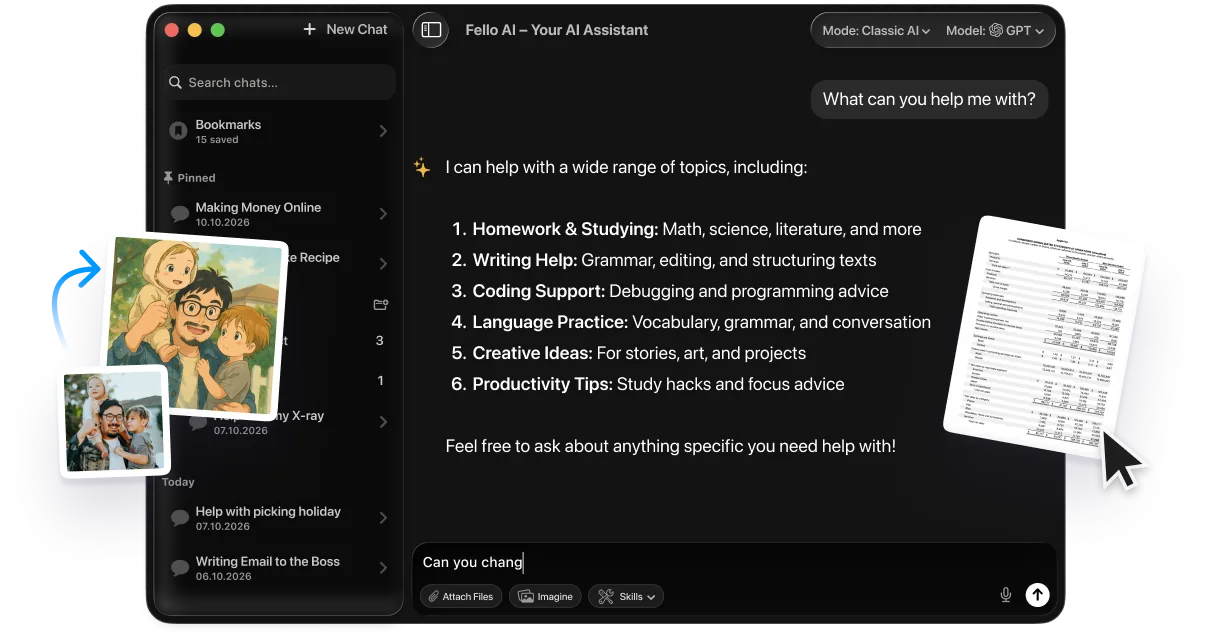
If you want a polished portrait without uploading and retouching anything, you can generate one from scratch. In Fello AI you just type a prompt, add your photo and a top image model builds the headshot for you in seconds.
A confident professional headshot of a person in a business-casual outfit, soft studio lighting, a neutral grey background, sharp focus, and shallow depth of field.
Tweak the wording until the look is right. Optionally drop the result into Canva to resize and brand it, or generate any image with Canva AI if you would rather stay in one tool. This route fits avatars and profile pictures best, where a clean, professional look matters more than an exact likeness of a specific photo.
Conclusion
The Canva headshot generator is the quickest, cheapest way to get a professional-looking AI headshot, with 2 free credits and a result in under a minute. Its weakness is likeness, since it restyles one photo instead of learning your face, so treat it as excellent for casual or fast-turnaround headshots and cautious for high-stakes profiles. Start with the free credits, use a sharp front-facing photo, and if the match matters more than the speed, compare it against a dedicated tool before you commit.
FAQ
Is the Canva AI headshot generator free?
Yes, partly. You get 2 free credits to create headshots, then a 24-hour wait before you can generate more for free. Upgrading to Canva Pro at $18/mo raises your monthly Premium AI credit allowance so you do not have to wait.
How many free headshots can you make in Canva?
The AI Headshot Generator provides 2 free credits at a time. After both are used, the free credits reset after a 24-hour wait, so you can keep making headshots on the free plan, just not all at once.
Is the Canva AI headshot good enough for LinkedIn?
For a casual profile it can work, but the likeness is inconsistent because Canva uses style transfer rather than training on your face. For a job-hunt LinkedIn photo where the match matters, a dedicated AI headshot tool usually delivers a stronger, more accurate result.
Do you need Canva Pro to make AI headshots?
No. You can make AI headshots on the free plan using the 2 free credits and the 24-hour reset. Canva Pro simply lifts the ceiling with up to 200 Premium AI credits a month, which suits anyone generating headshots regularly.
Why do the Canva AI headshots not look like me?
Canva applies a professional style to a single uploaded photo instead of fine-tuning a model on several images of your face. Without that training step, features like jawlines and eye spacing can shift, which is why faces sometimes drift from the original.